Build real Windows apps with AI, download your installer
Describe the software your business runs on: a point of sale, invoicing, inventory, attendance. Watch it take shape in a Windows window, choose where its data lives, and download a real .exe installer. From idea to Windows software. No coding required.
You describe itA point of sale for my restaurant: tap items to build an order, dine-in, takeaway or delivery, and print the receipt.
Fanann builds it
One .exe that carries your app’s name, icon and version. Not a shortcut to a website.
Menus, dense data grids, keyboard shortcuts and printing, and it opens straight into work.
On the PC so it works offline, or in Fanann Cloud so every employee shares it.
Version, size and checksum, and whether it was tested on Windows: written on every build card.
Three Windows programs built with Fanann
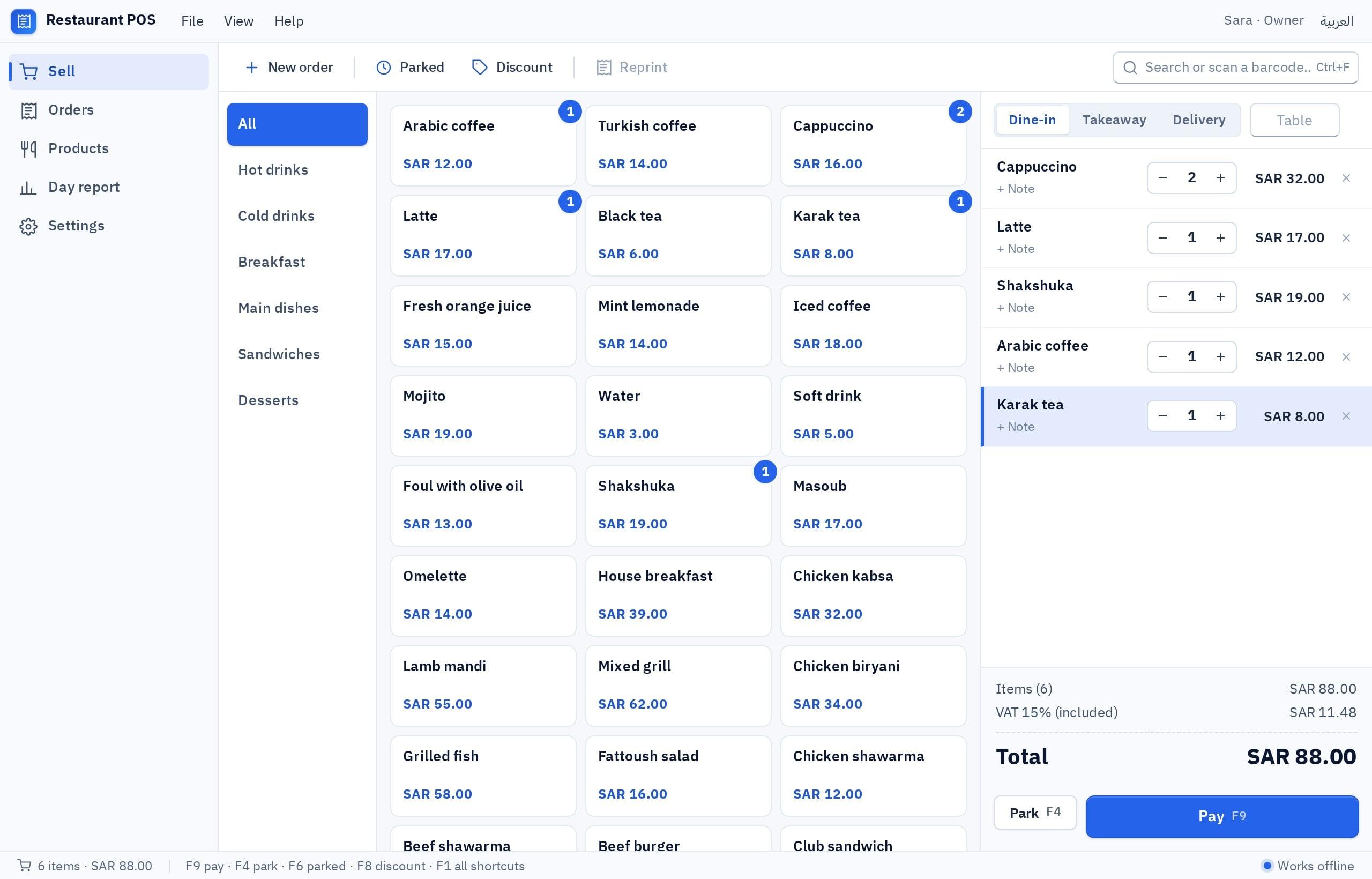
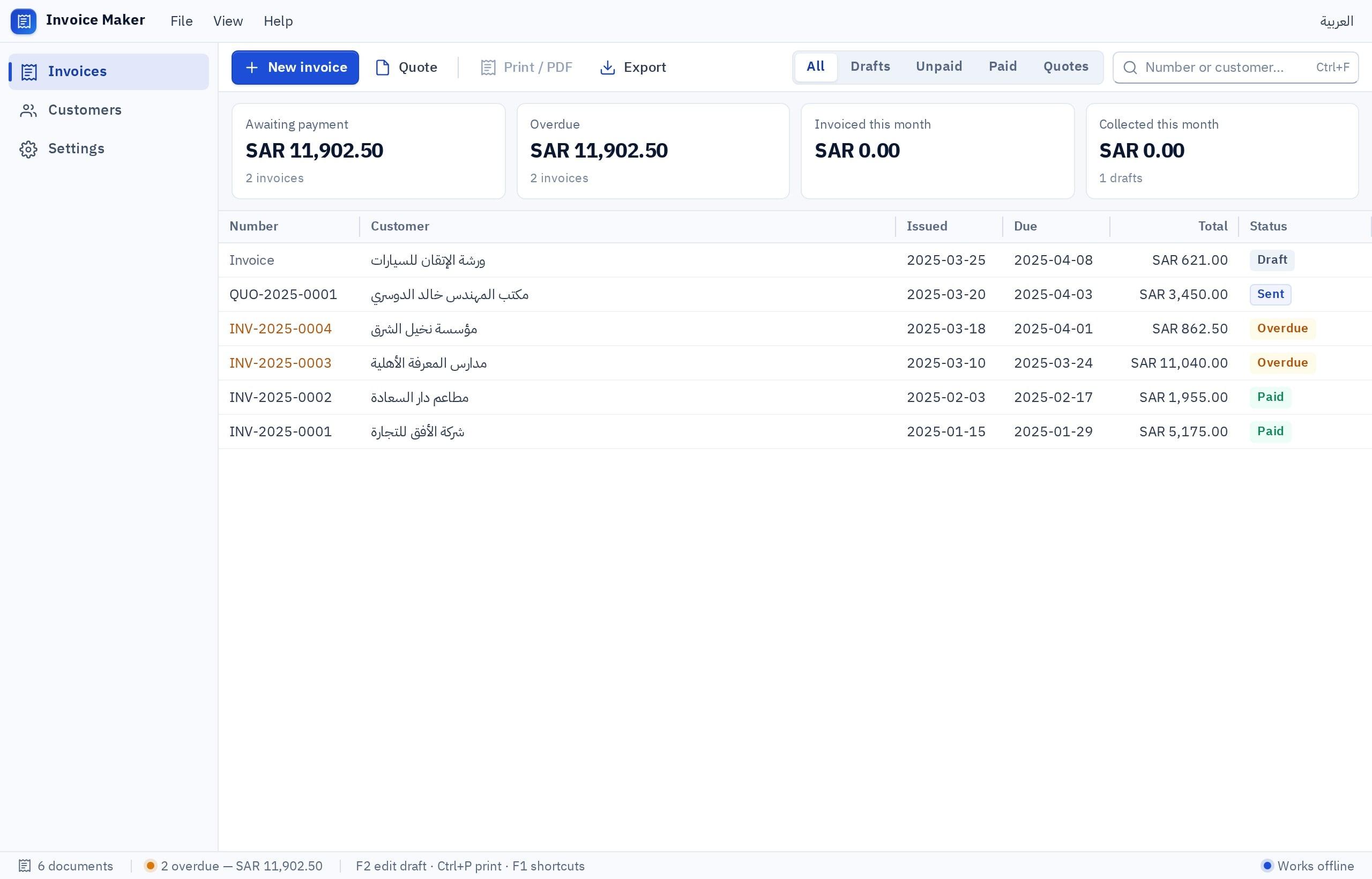
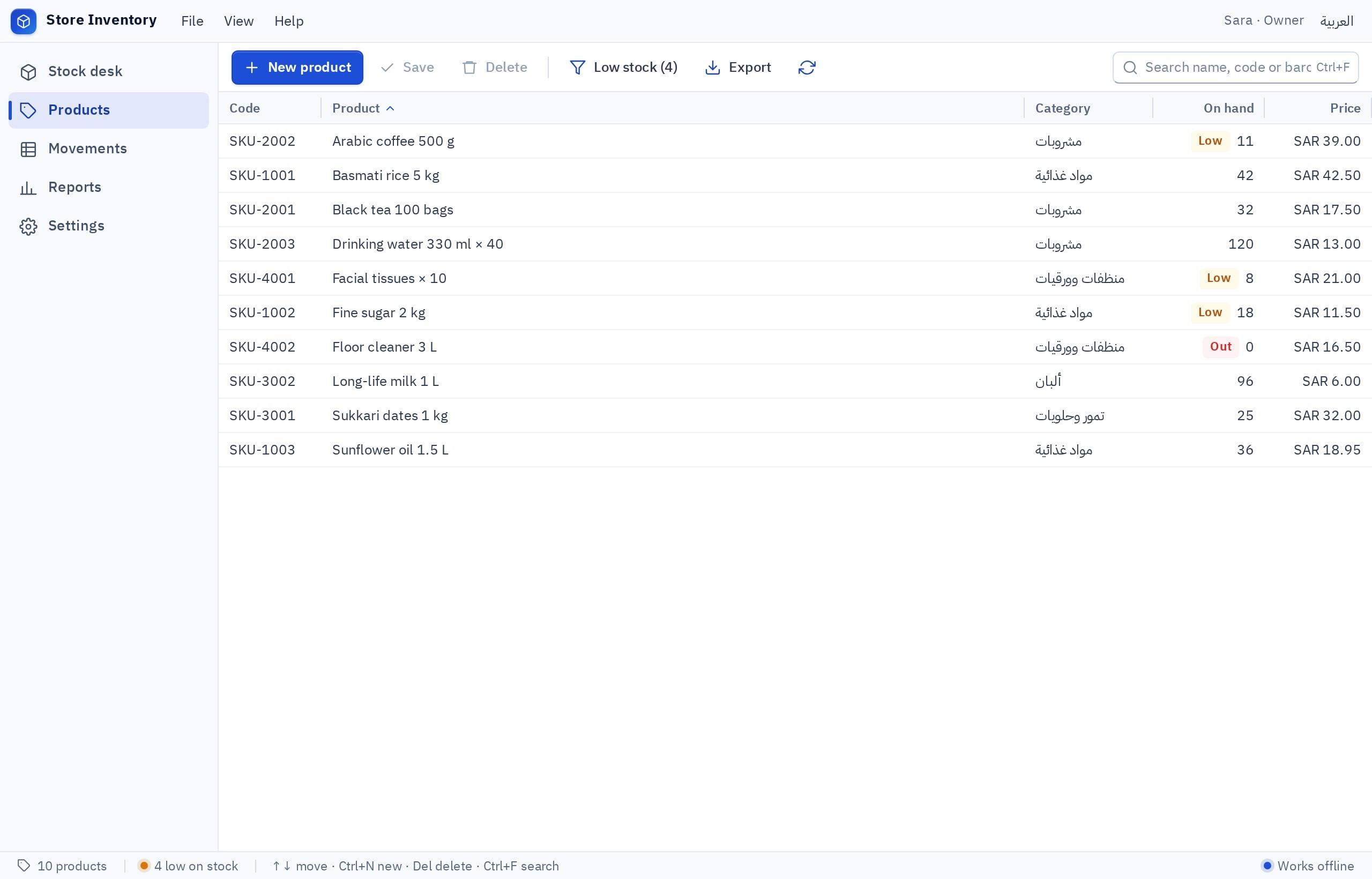
A restaurant point of sale, an invoice maker and store inventory. These are screens of programs that really run, not drawings. Tap any screenshot to see it in full detail.
From a description in your words to a program ready to download
An illustration of the flow. What is inside the window is a real screenshot of a program built with Fanann; the installer’s file name, size and checksum are examples.
From one sentence about your business to installed software, in five steps
Describe, preview, choose the data location, switch on abilities, then build and download. You review and decide; Fanann builds.
- 1Describe
Say what the software should do, in your own words
Start with one sentence about the job: “a point of sale for a café with two tills”, or “invoicing for a design studio”. Fanann asks only for what is missing, then builds the screens, the logic and the data rules. Or start from one of the eight templates and change it.
- In English or Arabic, with no technical terms required
- Real business software: POS, invoicing, inventory, attendance, appointments
- Change it with a sentence, “add a discount button”, or by clicking the element itself
- 2Preview
Try it inside a Windows window before you build anything
You see your app in a Windows 11 window frame: title bar, menus, status bar. Click, enter data, move between screens, and check it at 100%, 125% and 150% display scale. The preview is clearly labelled “Interactive preview”: it is for the interface and the workflow, while printing and files work in the installed app.
- A real desktop interface: menus, dense data grids and keyboard shortcuts
- Arabic right-to-left is correct from the first preview
- Nothing counts against your build allowance until you ask for an installer
Real screenshot of a program built with Fanann - 3Choose data
Decide where the data lives: on this computer or in Fanann Cloud
This is the decision that matters most for desktop software, and Fanann asks it in plain language, then waits for you to confirm. “On this computer”: it works offline and each PC has its own data. “Fanann Cloud”: one shared set of records that every employee sees from their own PC; it needs internet and uses your plan’s cloud allowance.
- The first installer cannot be built until you confirm the choice
- A “not sure?” helper with the two-PC example
- Changing later is possible, but it is a data migration, not a switch
- 4Switch on abilities
Allow only what your app needs from Windows
Printing, saving and opening files, notifications, backup and restore: four abilities, each off until you switch it on. The studio tells you which ones your app actually uses, and the installed app refuses anything you did not allow.
- A plain-language explanation of what each ability allows
- A warning if the app prints but printing is switched off
- Saving and opening files always goes through the Windows dialog you choose from
- 5Build and download
Build the installer and download it
Before the build you see an approximate estimate of what it will use. Then the app is bundled and packaged into one file carrying your app’s name and version. The result card says everything: file name, size, version and checksum, and whether it was actually tested on Windows.
- One .exe file, 64-bit, for Windows 10 and 11, installed without admin rights
- A failed build is not charged and is never downloadable
- A release history with notes for each version
A real installer, not a web shortcut
The result is a setup file you download from your workspace and run on a Windows PC like any software you bought. It installs your app, adds it to the Start menu and includes an uninstaller. And every build comes with a card that tells the truth as it is.
- The file
- One setup file named <App>-Setup-<version>.exe
- The system
- Windows 10 and Windows 11, 64-bit
- The install
- For the current user, with no admin rights, and with an uninstaller
- The check
- A SHA-256 checksum for every build, with its real test status
What it is
- A program installed on the PC that opens in its own window
- A local database that works offline, or sign-in to shared data
- Printing, files, notifications and backup through Windows, with your permission
- Numbered versions with release notes, built whenever you want
What it is not
- A desktop shortcut that opens a website in the browser
- A picture or a design mock-up that does nothing
- A file that still needs a developer to become software
- Software for Mac, Linux or phones
On this computer, or in Fanann Cloud? Your call, explained clearly
The same app, two places for its data. You are not asked to design an architecture: you are asked one question, and nothing proceeds until you confirm.
On this computer
Local modeThe data is in a database file on the PC itself, and the app needs no connection to work.
- Works with no internet at all
- No cloud database and no recurring hosting charge for this data
- Each PC has its own independent data
- Backups are your responsibility; the tool is in the app
Best for: one user or one machine, or anywhere the software must keep working when the internet is down.
Fanann Cloud
Shared modeOne database of your app’s own in Fanann Cloud. Every installed copy signs in to it.
- Every employee sees the same up-to-date records
- Each employee signs in from their own PC
- Needs an internet connection to work
- Uses your plan’s cloud allowance
Best for: more than one PC that must see the same invoices, orders or stock.
The two-PC example: the same file does not mean the same data
Installing the same .exe on two PCs in Local mode gives you two separate databases: what is entered on the first never appears on the second. That is not a bug; it is what “local” means. If both PCs must see the same records, choose Fanann Cloud.
The decision guide: local vs cloudWhat installed software does that a website cannot
Four abilities, each off until you switch it on. The installed app refuses anything you did not allow.
Printing
80 mm receipts and A4 invoices, with a print layout designed for paper rather than a screenshot, through the printers installed in Windows.
Files
Export reports and import lists through the Windows Save and Open dialogs, so the app reaches only what you pick.
Notifications
A Windows notification when an item runs low or an appointment is due, if you switch it on.
Backup and restore
In Local mode: save a copy of your data to a file and restore it when you need to. Backups are your job; the tool is ready.
Eight working apps to start from
Each template is a working app with sample data. Change it by chat until it is yours, then build its installer.
Who is Windows Studio for?
A point of sale and stock control shaped around how you actually work, not around a boxed product.
Front desk, appointments and attendance on the office PCs, with data shared across the team.
Hand your client Windows software with their own name and icon in days rather than months.
When the spreadsheet has outgrown itself: turn it into software with screens, rules and reports.
Start by designing and previewing; pay when you need the installer
Windows Studio is part of Fanann, and your subscription sets what you get: the number of projects, installer builds and build minutes per month, how long installers are kept, and whether your plan includes Fanann Cloud data. We do not print numbers here that may change: the pricing page explains how it is charged, and inside your account you see your plan’s exact allowances before you start.
- An approximate estimate before every build: credits, minutes and what is left of your allowance
- A failed build is not charged
- Fanann Cloud is enabled explicitly and uses your cloud allowance
- An installed local app has no monthly fee for running
- A clear warning when you are close to your plan’s limit
Plainly: the limits of Windows Studio today
Questions people ask about building Windows apps with AI
What is an AI Windows app builder?
Do I get real software, or a shortcut to a website?
What is the difference between “On this computer” and “Fanann Cloud”?
I installed the app on five PCs. Do they share data?
Does it run on Mac, Linux or phones?
How do I update the app after I have shared it?
Do I need coding skills, or a Windows PC, to build?
What does building an installer cost?
Pick the page that matches your question
Build a Windows app with AI
The steps in plain language with a worked example: from one sentence about the job, to an interactive preview, to the data choice, to the installer.
See the detailsAI desktop app builder
When desktop software beats a website: working offline, speed at the counter, printers and files, and data that is local or shared.
See the detailsCreate an EXE installer with AI
What is inside the installer, how to install it on more PCs, how versions work, and how to verify the file.
See the detailsAI POS software builder
A point of sale for a restaurant or shop: orders, receipts, the printer, and how staff see the same orders on more than one PC.
See the detailsAI inventory software builder
Inventory software on Windows: products, barcode input, stock movements and their history, reports, and when local data is enough.
See the detailsWindows app templates
Eight starting points you can change: POS, inventory, invoicing, expenses, front desk, attendance, labels and a file organizer, each with a suggested data location.
See the detailsCompare: local vs cloud data
The decision guide: where should your app’s data live? A comparison table, real scenarios, costs, and why five PCs do not share a local database.
See the detailsGuide: Windows app from idea to EXE
A long-form guide for business owners: writing the brief, reviewing the preview, choosing the data location, building the installer, sharing and updating it.
Read the guideWhat people ask about Windows programs
From idea to Windows software. No coding required.
Describe your business software, try it in a Windows window, choose where its data lives, then download the installer. Signing up is free.