To print barcode labels you need three things: an item list with a unique code per item, a label design matching your printer's paper size, and a printer installed in Windows. For internal codes in your shop or warehouse, Code 128 is enough. For a product sold in other people's stores you need numbers registered through GS1. Print one label and scan it with your own scanner before a batch. Tools ship with many printers, and if you want one tied to your item list and in Arabic, Fanann's Warehouse labels template imports items from a file, picks a label template and sends the print job from a Windows program.
- print barcode labels
- how to print barcodes for my products
- barcode label printing program for pc
- how do I make barcodes for my shop items
- price label printing software with arabic
- code 128 vs ean 13 which should I use
What do I need to print barcode labels for my products?
Many assume printing a barcode takes a complicated system. In truth a barcode is the item number drawn as bars that a scanner reads faster than you type. You need three things:
- 1. An item list
- A unique code per item, plus name and price
- 2. A label design
- Sized to the paper in your printer
- 3. A printer
- A label printer, or an office printer with sticker sheets
- To verify
- A barcode scanner to read the test label
 Illustration
Order matters: buy the printer before cleaning the item list and you get handsome labels with duplicate codes. Start with the list, even if it lives in Excel.
Which barcode type should I choose: EAN, Code 128 or QR?
| Type | Look and content | When to use it | Watch out |
|---|---|---|---|
| EAN-13 | 13 digits, what you see on supermarket goods | A product you sell in other shops or large retailers | Numbers are registered through GS1 in your country, not made up |
| Code 128 | Digits and letters, compact and clear | Your internal codes: items, shelves, cartons | The best general choice inside your own business |
| Code 39 | Digits and capital letters, wider | Older systems that require it | Takes more room for the same content |
| QR | A 2D square holding longer text or a link | A product page link, or more data than a number | Needs a 2D scanner or a camera. A linear scanner cannot read it |
Pick the one that sounds like you to see the advice.
Use Code 128 with a short internal code of your choosing. No registration is needed.
You need global numbers registered to your company. Contact GS1 in your country to obtain them, then print them as EAN-13.
Use a QR code holding the product page or price list link. Keep a linear barcode beside it if the cashier scans too.
Print nothing. Enter the factory number in your item list and scan it directly.
A thermal label printer, or an office printer with sticker sheets?
- Prints one label or a thousand from a roll with no waste
- No ink in the direct thermal kind
- Fast, suited to daily printing
- Needs the label size set precisely in its driver
- Direct thermal labels fade with heat and sunlight
- No new device to buy
- Fine for small, occasional batches
- Printing one label wastes the sheet or upsets alignment
- Aligning to the die cuts takes trial runs
- Laser is sharper and more durable than inkjet for barcodes
A shop pricing new stock weekly should get a thermal label printer. For monthly printing, A4 sheets do. Either way the printer must be installed in Windows and print a correct test page first.
What goes on the label, and how do I design it to scan first time?
A label is a small space, and every extra line shrinks the barcode. Choose what the person reading it really needs:
| Label type | What it carries |
|---|---|
| Price label on a product | Short name, price including VAT, barcode, number beneath |
| Shelf label | Full item name, price in large type, barcode, unit |
| Warehouse carton label | Item code, name, count per carton, receiving date, shelf location |
| Label for goods you pack | Name in Arabic and English, weight, production and expiry dates, barcode |
- White margin left and right of the barcode. Without it the scanner cannot tell where the code starts.
- Enough size: do not squeeze the barcode to fit more text. Shrink the text first.
- Black on white: colors and tinted backgrounds weaken reading.
- The number printed under the bars, for manual entry if the label is damaged.
- A flat surface: a label on a sharp curve or a carton corner is hard to scan.
How does printing a batch of labels go, step by step?
- 1Prepare the list
A file with columns for code, name and price, and an optional column for copies. Make sure no code repeats.
- 2Import it into the label program
Pick the file from your PC and check each column landed in place.
- 3Choose a label template
By paper size: a small price label, a shelf label or a carton label.
- 4Select items and copies
Twenty labels for an item that arrived as twenty pieces, one for a shelf.
- 5Print a test label
Just one. Stick it on the real product and scan it with your own scanner.
- 6Send the batch
After the scan succeeds. Watch the first ten labels to confirm alignment has not drifted.
A list tidied once serves the cashier, stock and labels together: see from a spreadsheet to an app.
Why does the scanner not read the label I printed?
| Symptom | Most likely cause | Fix |
|---|---|---|
| Reads no label at all | The scanner does not support the type, or the code is 2D and the scanner is linear | Try the scanner on a factory barcode, then switch to Code 128 |
| Reads after several tries | Barcode too small or print too faint | Enlarge the code and raise print darkness in the printer settings |
| Reads a short or wrong number | The code is cut at the label edge | Set the label size in the printer driver and leave a white margin |
| Print drifts label after label | Paper size in Windows does not match the roll | Enter the real width, height and gap, and run printer calibration |
| Reads, but the item does not appear | The printed code differs from the stored one (leading zero, extra space) | Unify the code format and store it as text, not a number |
| White streaks inside the barcode | A dirty or damaged print head | Clean the head as the manufacturer instructs |
Row five is the sneakiest. Excel drops leading zeros unless the column is text, so 00123 becomes 123 and no longer matches the cashier program. Check this before any import.
Should I use a ready tool or build a label program?
Candidly: many label printers come with design software, and some cashier and inventory programs print their own labels. If one is enough, use it. Building makes sense when:
- You want staff to print straight from your item list in two clicks, not design a label each time.
- You want an Arabic interface and Arabic names on the label as you write them.
- You have rules of your own: copies equal the quantity received, or an expiry date calculated from the production date.
- You want fixed templates nobody can tamper with.
- You want labels as a screen inside the inventory program itself, not separate software.
More ideas: Windows program ideas for small businesses.
How do I build a label printing program with Fanann?
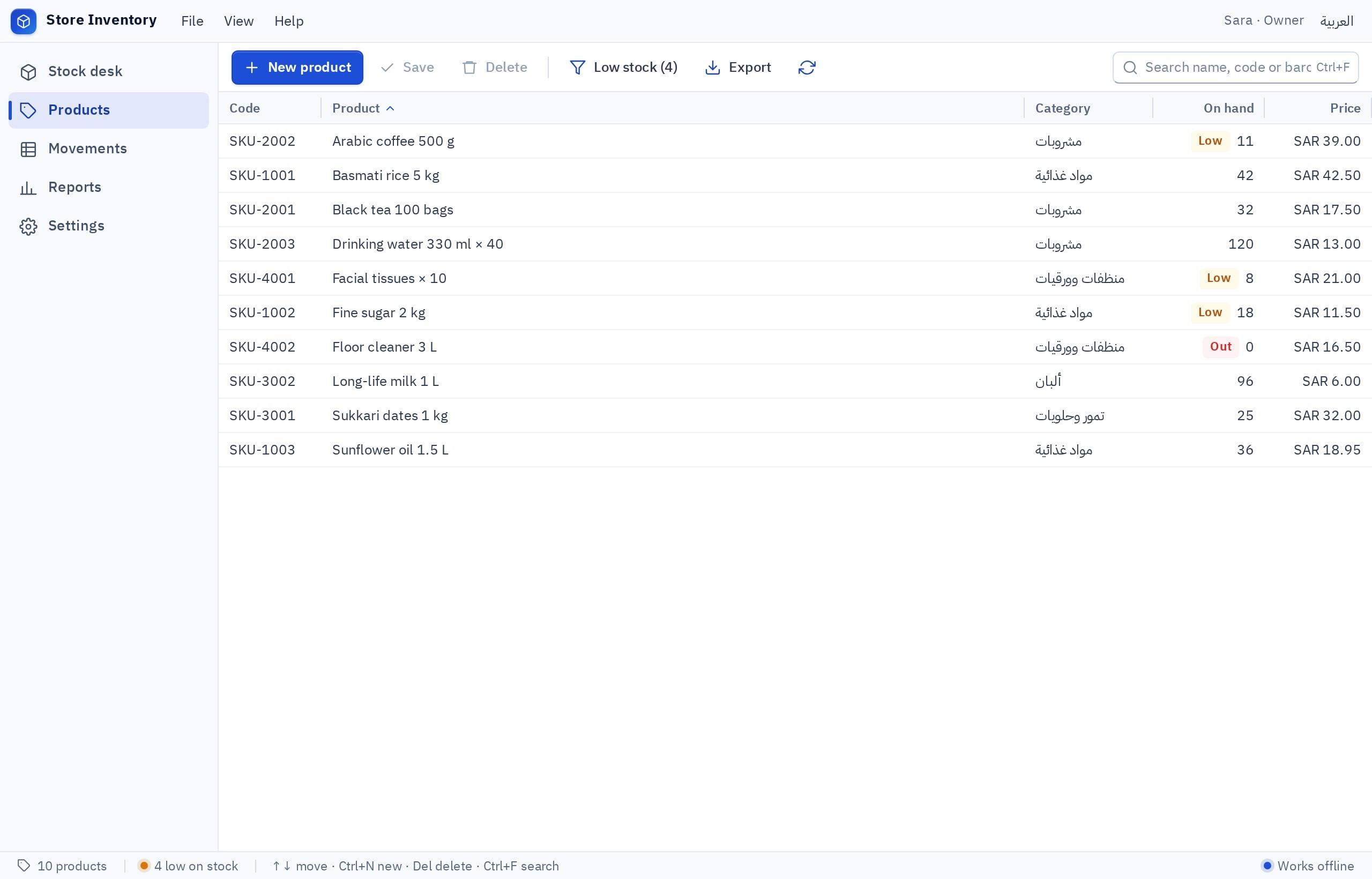
Windows Studio has a Warehouse labels template: it imports items from a file and exports them, offers label templates to choose from, and sends a print job for the labels you selected. Printing goes through printers installed in Windows, so success depends on your label printer being set up in Windows with the right paper size.
I want a label tool for a perfume and incense shop, in Arabic (right to left) with English. I import items from an Excel file with the columns: code, Arabic name, English name, size, price including VAT. Store the code as text so leading zeros are kept, and warn me if a code repeats. Three label templates: a small 40×30 mm price label (short name, price, Code 128 barcode with the number beneath), a 60×40 mm shelf label (Arabic and English name, price in large type, barcode), and a 100×50 mm carton label (code, name, count per carton, receiving date). Leave a white margin around the barcode. I select items by ticking or searching, type the number of copies per item, and see a preview before printing. A Print test label button prints just one, and a Print batch button. A log of what was printed and when. Add an item by hand and edit a price, then reprint its label.
Try it in FanannThe tool runs on the PC connected to the printer with local data, unless you want an item list shared between several PCs.
What should I review before printing a first large batch?
One test label saves you a whole roll of labels that will not scan.
Once labels work, link them to what comes before and after: the inventory program the codes come from, and the cashier program that scans them.
Key takeaways
- A barcode is just the item number drawn as bars. Its value comes from the item list behind it.
- For internal use choose Code 128 with your own codes, and never invent EAN numbers for a product sold elsewhere.
- A thermal label printer is faster and leaner for volume. A4 sticker sheets are fine for occasional printing.
- Most scan failures come from one of three causes: a label too small, a missing white margin, or faint print.
- Never print a batch before scanning a test label with your scanner on the real product surface.
Frequently asked questions
How do I print barcodes for my products?
Do I need a license or registration to make barcodes?
Can I print barcodes with an ordinary printer?
Will the program work with the label printer I have?
What is the difference between a barcode and a QR code?
Why does the scanner read the number but no item appears?
Ask your AI assistant about this
Copy this prompt into the AI assistant you use, then add the details of your own case.
I am reading this guide: “How to print barcode labels from your own program” https://fanann.com/en/blog/barcode-label-printing-program/ My question: print barcode labels Use that page as a source and explain the answer step by step for my situation, tell me what to check before I start, and cite the page link.