How to build a Windows app with AI, step by step
You do not need to know how to code, or even what the tools are called. You need to know your own business: who uses the software, what goes into it and what comes out. This page walks the whole path with one example from start to finish.
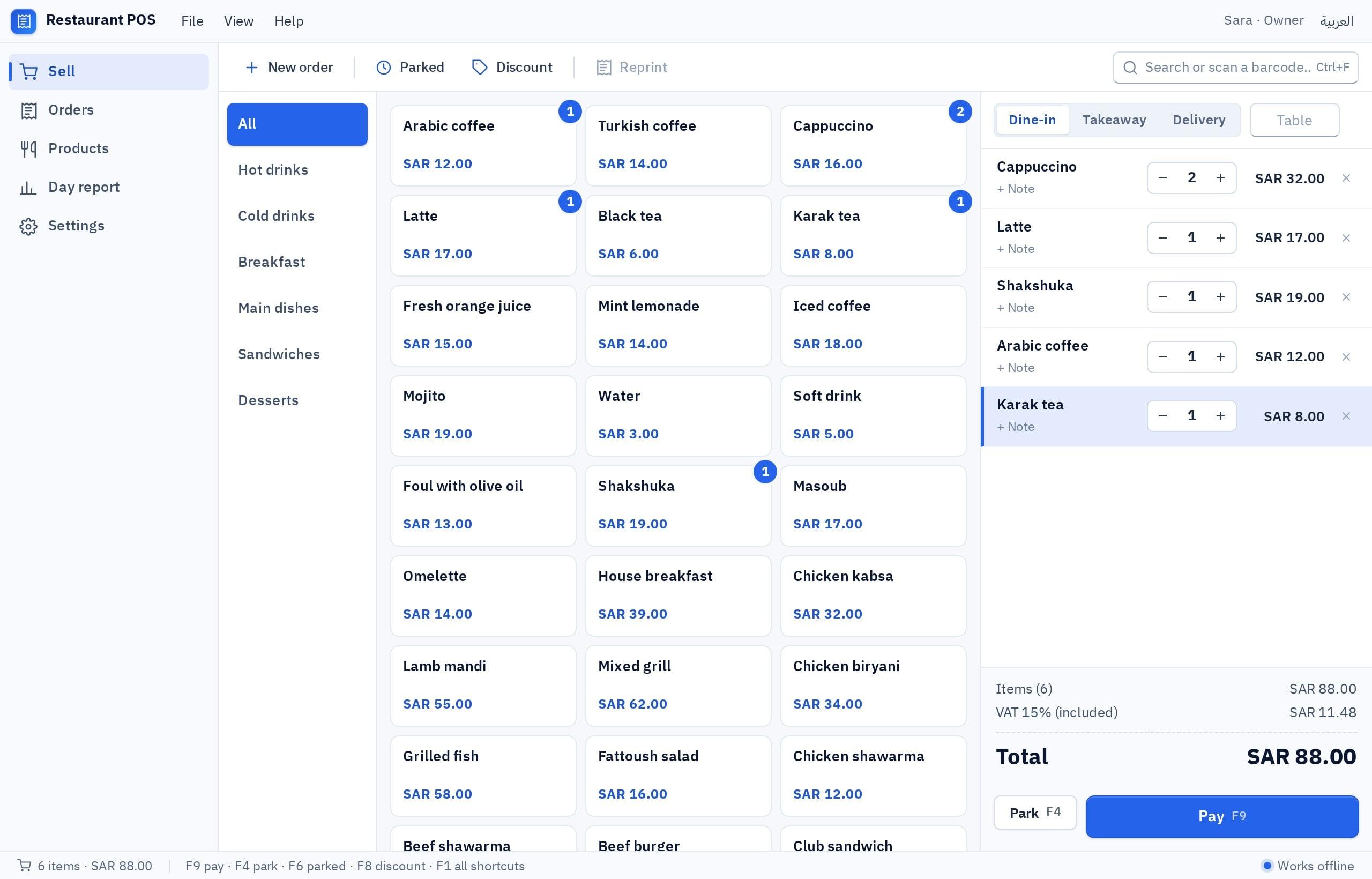
Three things to have ready, none of them technical
One sentence about the job
Who uses the software, what they do with it, and what has to come out at the end: a receipt, an invoice, a report. If the sentence is incomplete, Fanann fills the gaps by asking.
A real task to test with
An invoice you issued yesterday, or an order from this morning. Run it through the preview and you know at once what is missing, instead of judging by looks.
A Windows PC to install on
You build from any browser, even on a phone. The final test happens on a Windows 10 or 11 PC, with the printer you will actually use.
The example: an invoice maker for a two-person design studio
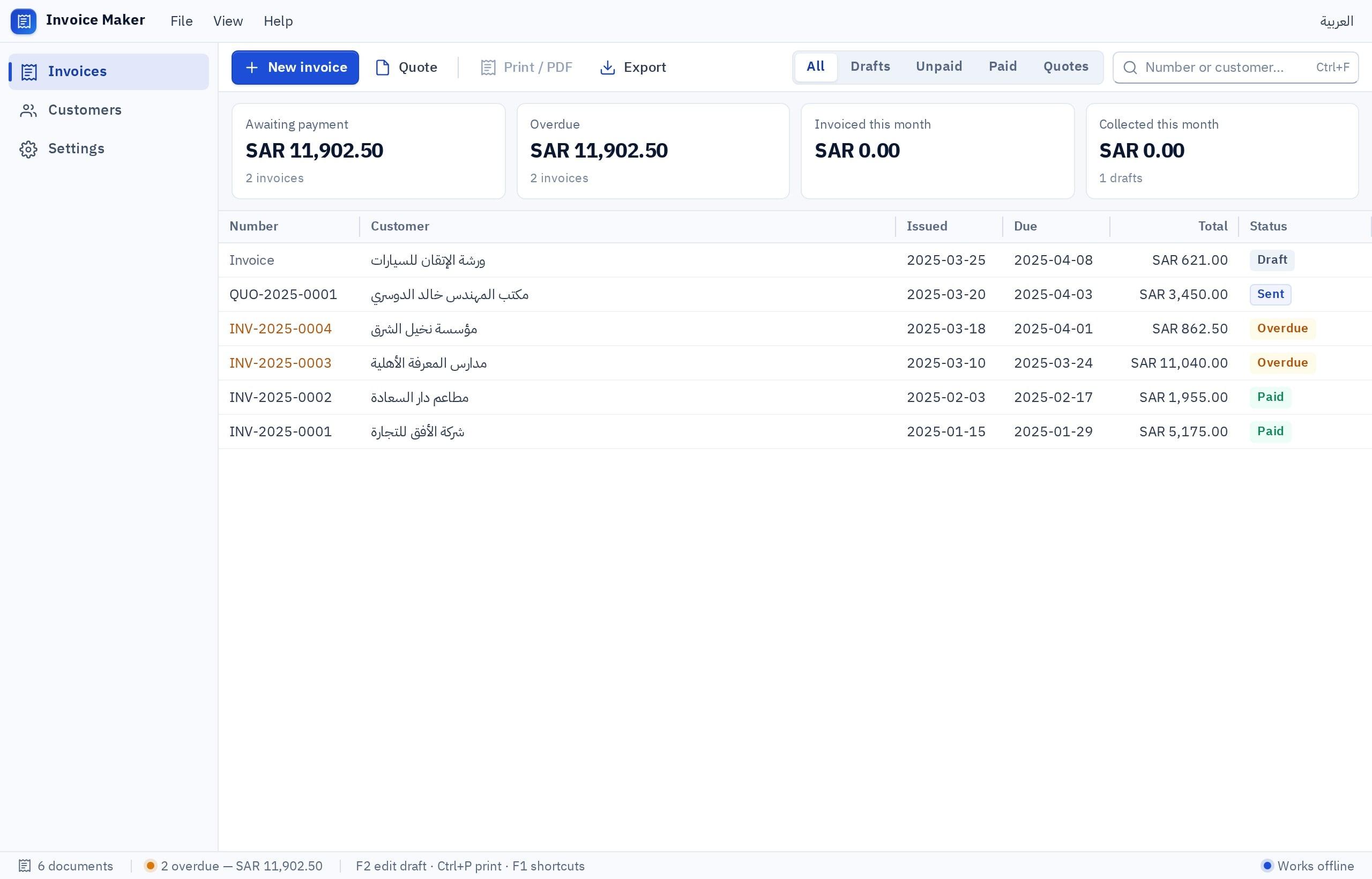
We write: “An invoice maker for a design studio: customers, line items with 15% tax, and an invoice that prints on A4 and exports as PDF.” A few minutes later there is a window with the invoice list on the side, the open invoice in the middle, and Print and Export buttons. The names and numbers in the picture are examples.
- Fanann builds the screens, the logic and the data rules together
- A desktop layout: a list and its detail, not a long web page
- Sample data, so you can try it before typing anything
The one question that stops the build until you answer
In our example there are two designers, each issuing invoices from their own PC. Choose “On this computer” and each would have their own invoices, with the same invoice number used twice. So we choose Fanann Cloud. If the studio were one person, Local would be simpler and cheaper.
- One question in plain language, with a “not sure?” hint
- No first installer is built before you confirm
- Changing later is a data migration: decide before you enter real records
The result card: exactly what you built
The build ends with a card showing the file name, version, size and checksum, plus one status we do not dress up: whether it was tested on Windows. Download it, copy it to the two studio PCs and install it. Then issue one real invoice before you rely on it.
- One .exe for 64-bit Windows 10 and 11
- Installs without admin rights
- A new version = a new installer with its release notes
What works in the preview, and what needs the installed app
The preview runs in the browser, which makes it excellent for judging screens and workflow. But it is not Windows: anything that depends on the system is tried after installing.
| What | In the interactive preview | In the installed app |
|---|---|---|
| Screens, navigation, fields | Fully working: click, type, move around | Fully working, in the app’s own window |
| Data | Preview data for trying things out | A database on the PC, or Fanann Cloud after sign-in |
| Printing | The browser’s print window, to check the layout only | The printers installed in Windows |
| Saving files | An ordinary browser download | The Windows Save dialog, where you choose the place |
| Notifications | A notice inside the page | A Windows notification |
| Working offline | No: the preview needs internet | Yes, in Local mode |
This is why it is called an “interactive preview” and not a “test”. A build stays “Built” until it is really installed and started on a Windows machine.
Three habits that get the first result close to what you want
There is no magic formula. But these three details save you rounds of changes.
Name the people and the task
Say who sits in front of the software and what they do with it twenty times a day. The app is built around that task.
“The cashier taps products; the manager looks at today’s sales.”
Say what gets printed or exported
The paper that comes out of the software decides half of its fields. Say its size and what has to appear on it.
“An 80 mm receipt with the shop name, the items, the tax and the total.”
Say how many PCs will run it
That one sentence settles the data location. One PC: Local. More than one PC that must see the same records: Cloud.
“Two PCs in the shop, and they must see the same orders.”
Build a Windows app with AI in eight steps
The same path for any business application. Steps 1 to 6 happen in the browser; the last two on a Windows PC.
- 1
Open Windows Studio and describe your software
Write a sentence or two about the job, or pick one of the eight templates. Answer Fanann’s questions if it asks.
- 2
Review the preview with a real task
Carry out one task from your day in the interactive preview: a whole invoice, a whole order. Note what is missing and what is in the way.
- 3
Change it by chat or by clicking
Ask for changes one at a time in plain words, or click the element in the preview and change it. Every change is saved as a version you can go back to.
- 4
Confirm where the data lives
Choose “On this computer” or “Fanann Cloud” and confirm. If you hesitate, read the decision guide first.
- 5
Switch on the abilities it needs
Printing, files, notifications, backup: switch on only what your app uses. The studio warns you if the app uses an ability that is off.
- 6
Read the estimate, then build
Name the app, choose its icon and version number, read the approximate estimate, then start the build. When it finishes, the result card appears.
- 7
Download and install on a Windows PC
Download the file from your workspace, compare its checksum if it reached the PC as a copy, then run it. The details.
- 8
Try it with real work before you rely on it
Print on your own printer, save a file, close the app and open it again to confirm the data is still there. Then roll it out to the other PCs.
Plainly: what to expect
Questions people ask
How long does it take to build a Windows app with AI?
Do I need to install anything to build?
What if I do not like the first result?
Can I start from an Excel file?
Can I build any kind of Windows program?
Who owns the app I build?
The rest of Windows Studio
AI Windows app builder
The main page: describe your business software in plain words, watch it take shape in a Windows window, choose where its data lives and download a real installer.
Meet Windows StudioAI desktop app builder
When desktop software beats a website: working offline, speed at the counter, printers and files, and data that is local or shared.
See the detailsCreate an EXE installer with AI
What is inside the installer, how to install it on more PCs, how versions work, and how to verify the file.
See the detailsAI POS software builder
A point of sale for a restaurant or shop: orders, receipts, the printer, and how staff see the same orders on more than one PC.
See the detailsAI inventory software builder
Inventory software on Windows: products, barcode input, stock movements and their history, reports, and when local data is enough.
See the detailsWindows app templates
Eight starting points you can change: POS, inventory, invoicing, expenses, front desk, attendance, labels and a file organizer, each with a suggested data location.
See the detailsCompare: local vs cloud data
The decision guide: where should your app’s data live? A comparison table, real scenarios, costs, and why five PCs do not share a local database.
See the detailsGuide: Windows app from idea to EXE
A long-form guide for business owners: writing the brief, reviewing the preview, choosing the data location, building the installer, sharing and updating it.
Read the guideStart with one sentence about your business.
Describe your software, review the preview with a real task, and build the installer when you are ready. Signing up is free.