Choose a local database if the program runs on one PC or must work without internet: the records stay on that PC and backing them up is your responsibility. Choose a cloud database if several employees on different PCs must see the same records: each signs in with their own account, and the program needs an internet connection. No option combines working offline with sharing, so decide which matters more to you.
- local database vs cloud database
- where is my program's data stored
- should I keep my shop data on the PC or in the cloud
- same software on several computers with shared data
- is local or cloud data safer for a small business
- local vs cloud for desktop software
What is the question in short, and why am I being asked?
Every program stores something: invoices, products, appointments, customers. The question where does all of it live? has only two answers. Either in a local database on the disk of the PC the program runs on, or in a cloud database on a server the program reaches over the internet.
In Fanann's Windows Studio you are asked this explicitly before the installer is built, because the program is prepared differently for each option. It is less technical than it sounds. It is a question about how you work: how many people, from where, and what happens when the internet drops.
What does a local database mean for my day?
- Where records live
- On that PC's disk
- Internet
- Not needed to work
- Sign-in
- Not needed for sharing
- Several PCs
- Each has its own records
- Backup
- Yours: a file you save and restore
In practice: you open the program in the morning and it works at once, even with the router off. Everything you enter is saved on the PC in front of you. If you install the same program on a second PC, that one starts empty with its own data and knows nothing about the first.
This is ideal for the freelancer issuing invoices, the grocery with a single till, and the label-printing tool on the PC connected to the printer. For readers who care about this option above all, we wrote software that works without internet.
What does a cloud database mean for my day?
- Where records live
- In the cloud, not on one device
- Internet
- Needed to work
- Sign-in
- Each employee, own account
- Several PCs
- See the same records
- A new PC
- Ready as soon as you sign in
In practice: the receptionist books an appointment and it shows at once on the manager's PC. The storekeeper records a delivery and the salesman sees the new quantity. If a PC breaks, nothing is lost: install the program on another PC, sign in, and all the records are there.
A cloud database also brings something the local one did not have: accounts. You add an account for each employee from the users screen inside the program, and each signs in under their own name. That is how you know who issued an invoice and who changed a quantity, and how the manager can be allowed what the salesman is not.
The trade-off is plain: when the internet drops, the program stops until the connection returns. If your shop is somewhere with an unstable network, think about a backup connection such as a data SIM before you depend on this option.
How do they compare side by side?
This table gathers the above into six situations you will actually meet. Read it row by row and ask at each one: which column looks like my day? The row whose answer bothers you most is usually the one that settles your choice.
| Situation | Local database | Cloud database |
|---|---|---|
| No internet | Works fully | Stops until the connection returns |
| Several PCs, same records | No. Each PC has its own | Yes. One set for everyone who signs in |
| Installing on another PC | Starts empty with its own data | Sign in and find the same records |
| Backup | On you: the program saves a copy to a file and restores it | Records are in the cloud, not on one device |
| If the PC breaks or is lost | Its records are lost unless you kept a copy | Nothing is lost; sign in from another PC |
| Cost | No hosting cost for the data | Counted against your plan's limits |
Which do I choose? Three questions are enough
- How many PCs will use the program? One PC means local, and the question is over.
- If more than one: must they see the same records? If each PC has its own independent work, local on each.
- Must work continue when the internet drops? If yes and you also need sharing, you have to choose the more important one, because the two do not come together.
Pick the one that sounds like you to see the advice.
A local database. No server and no accounts needed. Make a weekly backup a habit.
Local on each PC. Each keeps its own records and works offline, and nothing is shared between them.
A cloud database. Everyone sees the same invoices, bookings and stock, and the program needs internet.
Not available in one option today. If stopping costs you sales, choose local and combine reports by hand. If conflicting records cost you more, choose cloud and arrange a backup connection.
What do businesses like mine usually pick?
These suggestions follow how each kind of program is commonly used. You confirm the final choice:
| Program | Suggested | Reason |
|---|---|---|
| Café cashier on one till | Local | It must keep selling when the internet drops |
| Cashier on two or more tills | Cloud | They must see the same orders |
| Inventory used by several employees | Cloud | They must see the same quantity |
| Invoice maker for a freelancer | Local | One person on one PC |
| Expense tracker | Local | Private data for one user |
| Salon or clinic front desk | Cloud | Front desk and staff see the same schedule |
| Employee attendance | Cloud | The manager sees everyone from their own PC |
| Warehouse labels | Local | A tool on the PC connected to the printer |
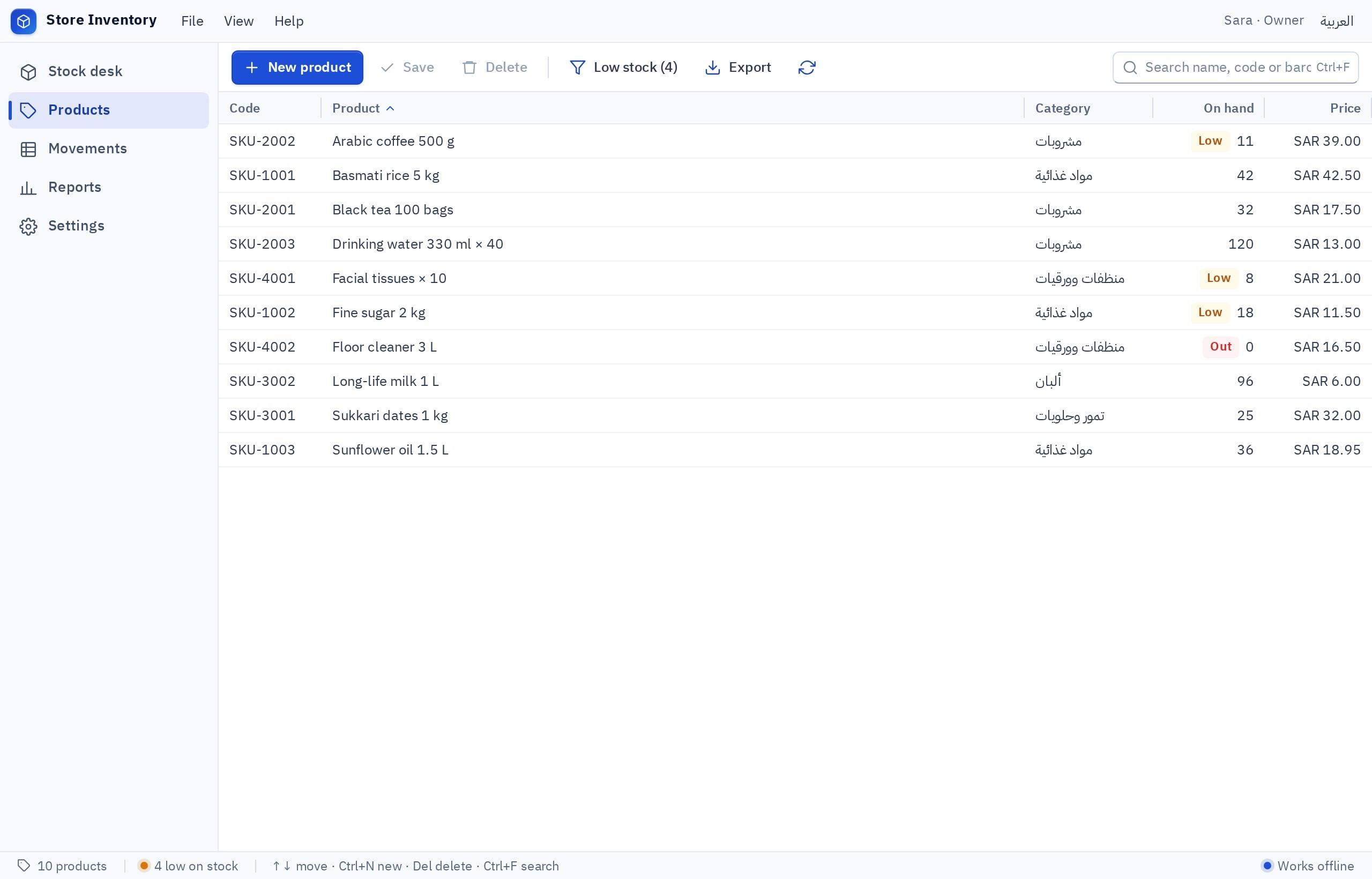
I want a Windows inventory program in Arabic and English for a housewares shop with one PC at the sales counter and one in the stockroom. Items: name, barcode, quantity, selling price, alert level. Receiving, selling and adjustment movements with a reason and the employee's name. Search by name or by scanning a barcode. A low-stock alert. A monthly movements report. Both PCs must see the same quantities at every moment, each employee signs in with their own account, and only the manager can change prices.
Try it in FanannNotice the last sentence of that description: 'both PCs must see the same quantities'. That sentence is what signals a cloud database. For inventory specifically, see an inventory program for your shop.
Can I change my choice later?
Yes, and the change goes through a review step before it is saved. Know now, though, that it changes how the next version of your program works, and that existing records do not move by themselves.
From local to cloud
- 1Save a backup on every PC
Local records stay on their PCs and do not rise to the cloud automatically.
- 2Change the data location and build a new version
With a higher version number.
- 3Install the new version for everyone
Each employee signs in with their own account. From here on the program needs internet.
From cloud to local
- Each PC starts with its own empty records, and nobody sees anyone else's work.
- The shared records stay in the cloud, so export what you need from the program first.
- Everyone installs the new version.
So it is better to settle the choice well at the start. If you begin local on one PC and the business grows, the move is possible, and we describe how to run it with staff in installing a program on staff computers.
What about privacy, security and cost?
- Records are on your PC, under your hand
- As secure as the PC: a password, a locked office
- Losing the PC with no backup means losing the records
- No hosting cost for the data
- Records are in the cloud and each employee has an account
- Deleting an employee's account stops their access to shared records
- A broken PC loses nothing
- Counted against your plan's shared-data limit
Neither is 'safer' in absolute terms. Local frees you from depending on the network and puts all the responsibility on you. Cloud protects you from losing a PC and adds accounts that must be managed: a password per employee, and removing the account of anyone who leaves on the same day.
If the records include your customers' personal data, check your country's data protection requirements at the official source, whichever option you choose. For what each plan includes in shared data, see the pricing page.
Ask how many PCs before you ask which kind of database. The first answer gives you the second.
Key takeaways
- The question is not which is better but how many PCs there are and whether they must all see the same records.
- Local: works offline, each PC has its own records, and backups are on you.
- Cloud: one set of records for everyone, a sign-in per employee, and it stops when the connection drops.
- Installing a local program on five PCs gives you five separate sets of data, not one shared set.
- You can change the choice later, but existing records do not move by themselves, so plan the move.
Frequently asked questions
What is the difference between a local and a cloud database?
Should I keep my shop's data on the PC or in the cloud?
Can I connect two PCs to the same program and the same data?
Which one is more secure?
Can I work offline and share data at the same time?
What happens to my data if I switch from local to cloud?
Ask your AI assistant about this
Copy this prompt into the AI assistant you use, then add the details of your own case.
I am reading this guide: “Local database or cloud database for your program: how to choose” https://fanann.com/en/blog/local-vs-cloud-data-for-desktop-software/ My question: local database vs cloud database Use that page as a source and explain the answer step by step for my situation, tell me what to check before I start, and cite the page link.